How to SetUp & Use YI IoT App for Camera Monitoring?
In today’s world, home security has become more accessible than ever before. Thanks to smart devices like YI IoT cameras, monitoring your home, office, or any other space has become a breeze. The YI IoT App, a powerful mobile application, enables you to control and monitor YI cameras remotely, offering live video streaming, two-way communication, motion detection alerts, and more. Whether you're at home, in the office, or traveling, you can stay connected and ensure that everything is safe and secure.
In this comprehensive guide, we will walk you through the process of setting up and using the YI IoT App to monitor your YI cameras. From downloading and configuring the app to using its advanced features, we’ll cover everything you need to make the most out of this incredible app for security and surveillance.
What is the YI IoT App?
Before we dive into the setup process, let’s take a moment to understand what the YI IoT App is and why it's so popular among users.
The YI IoT App is a mobile application designed by YI Technology to work with YI IoT cameras and other smart devices. It allows you to monitor live video feeds, receive motion alerts, communicate with people in the monitored space via two-way audio, and even store video footage either in the cloud or on local storage.
Some key features of the YI IoT App include:
Real-time live streaming: Watch live video from your cameras at any time.
Two-way audio: Communicate remotely with family members, pets, or visitors.
Motion detection: Get alerts whenever motion is detected in the camera’s field of view.
Cloud storage and local storage options: Store your footage securely for later viewing.
Remote control: Adjust settings, zoom, or move the camera remotely.
The YI IoT App is compatible with a range of YI products, including the YI Home Camera, YI Dome Camera, YI Outdoor Camera, and more, making it an excellent tool for home security, pet monitoring, or office surveillance.
How to Download & Install the YI IoT App
Before you can set up and use the YI IoT App, you’ll need to download and install it on your smartphone or tablet. The app is available for both iOS (iPhone and iPad) and Android (smartphones and tablets).
For iPhone or iPad:
Open the App Store on your iOS device.
In the search bar, type "YI IoT" or "YI Home".
Find the YI IoT App and tap on it.
Tap the Get button to download and install the app.
Once installed, tap the Open button to launch the app.
For Android Devices:
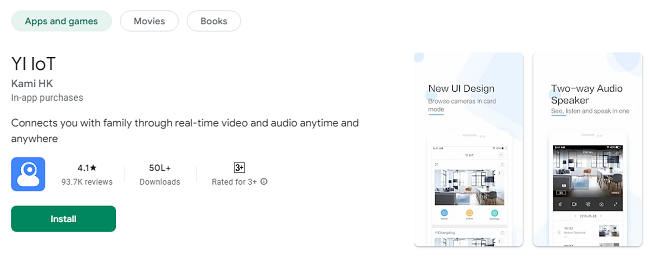
Open the Google Play Store on your Android phone or tablet.
In the search bar, type "YI IoT" or "YI Home".
Select the YI IoT App from the search results.
Tap the Install button to begin the download.
After installation, tap Open to launch the app.
Once the app is installed, you are ready to start the setup process.
How to SetUp YI IoT App for Monitoring Cameras?
Setting up the YI IoT App and connecting your cameras is a straightforward process. Here’s a step-by-step guide to get you up and running.
Step 1: Create a YI IoT Account or Log In
Create an Account: If you are using the YI IoT App for the first time, you’ll need to create a new account. Open the app and tap on Sign Up. You’ll be asked to enter your email address and create a password. You may also have the option to sign up using Google or Facebook accounts.
Log In: If you already have a YI IoT account, tap on Log In, and enter your credentials to access your account.
Step 2: Add Your Camera
After logging in, the app will prompt you to add a device. Here’s how to connect your YI camera to the app:
Tap the “+” Icon: On the main dashboard of the app, tap the “+” icon to add a new device.
Select the Camera Type: Choose the type of YI camera you want to set up, such as the YI Home Camera, YI Dome Camera, or YI Outdoor Camera.
Follow the Instructions: The app will provide instructions on how to connect your camera. You will likely need to power on the camera and make sure it is in pairing mode (usually indicated by a blinking light).
Step 3: Connect to Wi-Fi
Connect to Wi-Fi: The app will ask you to enter your Wi-Fi network name (SSID) and password so the camera can connect to the internet.
Confirm Connection: After entering your Wi-Fi credentials, the app will connect the camera to your network. This may take a minute or two. Once the camera is connected, you’ll see a success message.
Confirm Device Setup: Your camera should now appear in the YI IoT App’s main interface, and you can start monitoring it immediately.
Step 4: Customize Camera Settings
Once your camera is connected to the YI IoT App, you can customize its settings to suit your preferences. Here are some settings you can adjust:
Camera Resolution: Choose between different video quality options (e.g., HD, 720p, or 1080p) depending on your network speed and storage preferences.
Motion Detection Alerts: Enable motion detection alerts so the app can notify you when movement is detected in the camera’s field of view.
Sound and Audio Settings: Adjust the sound settings for the camera’s microphone and speaker. You can also enable two-way audio for communication.
Cloud Storage Options: If you want to save footage in the cloud, configure your cloud storage preferences, including recording durations and storage limits.
Camera Angles (For Dome Cameras): If you’re using a YI Dome Camera, you can control the camera’s movement (pan, tilt) directly from the app to adjust the angle and get a full view of the area.
How to Monitor Cameras Using the YI IoT App?
Once your YI cameras are set up, you can start using the app to monitor them remotely. The YI IoT App offers a variety of features to help you stay connected and secure.
1. Real-Time Live Streaming
The primary feature of the YI IoT App is live video streaming. You can view your camera’s live feed from anywhere, whether you’re at home, in the office, or on the go.
Access Live Feed: On the main screen of the app, tap the camera you want to monitor. The live feed will appear, allowing you to see what the camera is capturing in real time.
Full-Screen View: Tap the screen to go into full-screen mode for a better viewing experience.
Video Quality Control: Depending on your internet connection, you can adjust the video quality for smoother playback.
2. Two-Way Audio Communication
If your camera supports two-way audio, you can use the YI IoT App to communicate with anyone in the camera’s field of view. This feature is perfect for:
Speaking to Family or Pets: If you're using the camera at home, you can talk to family members or even your pets when you're not there.
Interacting with Visitors: You can use the two-way audio feature to speak with delivery drivers or guests at your door.
To activate two-way audio, simply tap the mic icon in the live video feed, and hold it down while speaking. The person on the other end will hear your voice through the camera’s speaker.
3. Motion Detection Alerts
The YI IoT App has a motion detection feature that sends alerts whenever movement is detected by the camera. This is an excellent feature for home security, as it keeps you informed about any potential activity.
Enable Alerts: In the app’s settings, enable motion detection alerts for each camera you have set up.
Receive Notifications: When motion is detected, you’ll receive an instant notification on your phone, allowing you to check the camera feed right away.
4. Recording and Playback
The YI IoT App allows you to record video footage and store it either in the cloud or on a local SD card (depending on the camera model). This allows you to review past footage when needed.
Record Footage: Tap the record button in the live stream to start recording. The footage will be saved according to your storage settings.
Review Recordings: Access saved footage from the app's Playback section. You can browse past recordings by date and time, making it easy to find important events.
5. Digital Zoom and Panoramic Views (For Dome Cameras)
If you’re using a YI Dome Camera, the app allows you to control the camera’s movement for a full 360-degree view. You can also use the 4x digital zoom to focus on specific areas in the camera’s field of view.
Adjust Camera Angle: Simply swipe your finger on the screen to pan the camera left, right, up, or down.
Zoom In: Tap the zoom icon to magnify the view and get a closer look at specific details.
Conclusion
Setting up and using the YI IoT App to monitor cameras is a simple and effective way to enhance the security of your home or office. Whether you’re looking for live streaming, motion alerts, two-way communication, or video recording capabilities, the YI IoT App has everything you need for efficient and remote camera monitoring.
By following the steps outlined in this guide, you can quickly set up your YI cameras and start enjoying the peace of mind that comes with having full control over your security system, all from the palm of your hand.
Trending Now
Updates